
Reminder Management and Automatic Notifications
The reminders cog by AAA3A Cogs is an incredibly powerful and flexible tool we can use for many different functions.
The bot can be programmed to say a message on a recurring time schedule, it can remind you privately about things you need to remember, it can trigger bot commands for you on repeat, and even produce discord timestamps for you.
NOTE: There is a problem with the base /remind command. Despite it being listed as a function, only use it with a subcommand such as /remind say or /remindme |
|---|
Before Using the Commands
Before you first use any command, you need to configure your timezone. You only ever do this once, and then the bot will remember it forever.
Simply enter /reminder timezone and discord should pop up a list of timezones for you. Find the one that is closest to you and select it, then send the command.
This will ensure that the bot operates in the correct timezone for you at all times.
Time Parsing Tips
Direct from the bot, you can get these by issuing the command /reminder timetips
Bot Tips
Time Parsing Tips
Allowed absolutes are:
• eoy - Remind at end of year at 17:00.
• eom - Remind at end of month at 17:00.
• eow - Remind at end of working week (or next friday) at 17:00.
• eod - Remind at end of day at 17:00.Allowed intervals are:
• years/year/y
• months/month/mo
• weeks/week/w
• days/day/d
• hours/hour/hrs/hr/h
• minutes/minute/mins/min/mYou can combine relative intervals like this:
• [in] 1y 1mo 2 days, and -5h
• on 29th may at 18h, and every yearTimestamps and iso-timestamps are supported:
• For ISO, be aware that specifying a timezone will ignore your timezone.Dates are supported, you can try different formats:
• 5 jul, 5th july, july 5
• 23 sept at 3pm, 23 sept at 15:00
• 2030
• [at] 10pm
• friday at 9h
Note: the parser uses day-first and year-last (01/02/03 -> 1st February 2003).Cron triggers are supported:
• Check https://crontab.guru/.
Unders Tips
You can get a simple repeat out of the bot by using the word every i.e. you want a reminder at 11am Sunday? You write 11am Sunday but if you want it 11am every Sunday you write 11am every sunday
List out your reminders
| Command | /reminder list |
|---|
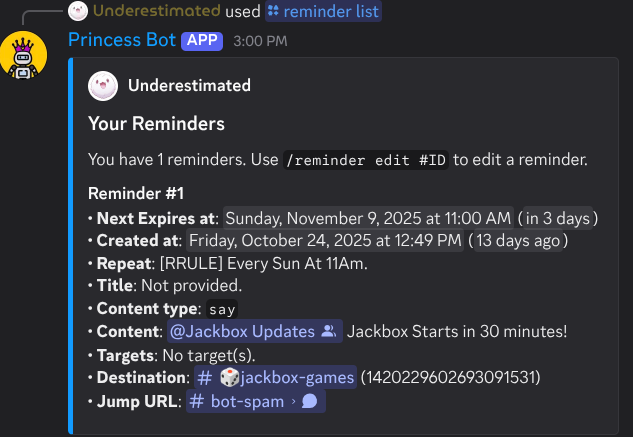
A simple function that will list out all your active reminders. It will give you the reminder ID number as well so that you can edit your reminder.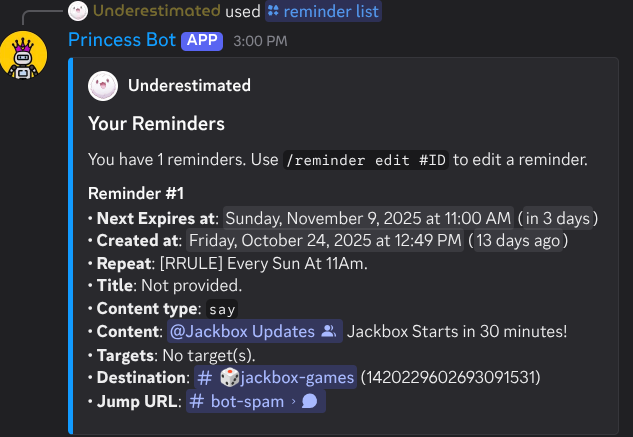
Have the bot send a message at a specific time
| Command | /reminder say time:<time> text:<message> destination:[Channel] |
|---|
Use the slash command for this and click each prompt, it's much simpler than typing the fields yourself
This is the most important function of the reminder tool. It can be set so that the bot can say a message at a specific time and if needed in a specific channel. With the right syntax, you can set up recurring reminders at specific times to send messages or ping specific roles (like reminding members about Trivia)
A quick guide on setting up a recurring reminder with /reminder say
The command to create a reminder that sends a message in a channel is/reminder say
Discord will instruct you on what to add.
- Write the time relative to you, for example 11am Every Sunday.
- Then press message and enter what you want the bot to say. You can @ groups and people like normal, because it's a slash command they won't get a notification when you make it.
- Once your message is right press destination and pick the channel it will go to.
- Send the message, a confirmation will appear.

 A fully configured /reminder say command for pinging a role to remind them of the Jackbox Games Event

Confirmation of the reminder being set
Should you need, you can edit the reminder and its repeat from here.
Edit an existing reminder
| Command | /reminder edit <Reminder ID> |
|---|
It's easier to do this after generating a list of your reminders, so do that first.
Once you have this list, you can enter the /reminder edit command and specify the number of the ID you want to edit.
Once you send that you'll get a response like this: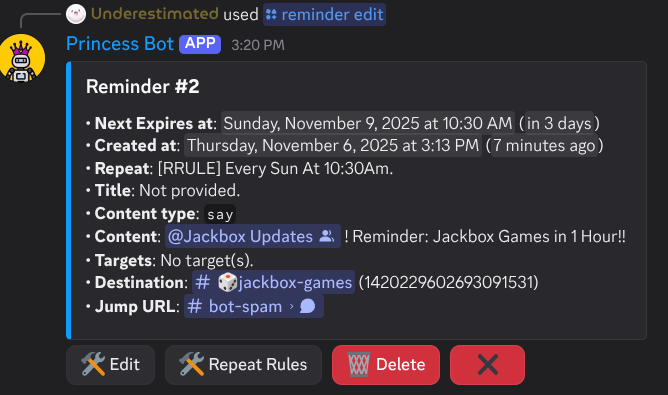
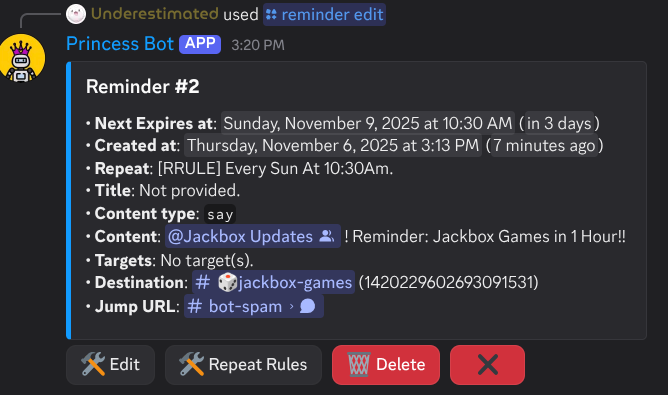
You can use the buttons under the reminder to adjust it's settings, add repeat rules and edit its behaviour. These are all fairly intuitive so I won't go into depth on these here.